How to Prepare Your Setup for a Remote Usability Test | Complete Guide

The difference between a productive remote usability test and a frustrating one often comes down to what happens before the participant even joins the session. After hundreds of remote usability tests over the past decade, I’ve learned that smooth sessions are almost never accidents—they’re the result of deliberate preparation. The technology fails, the audio cuts out, the participant can’t share their screen, and suddenly you’ve wasted thirty minutes of a real user’s time and gained nothing actionable.
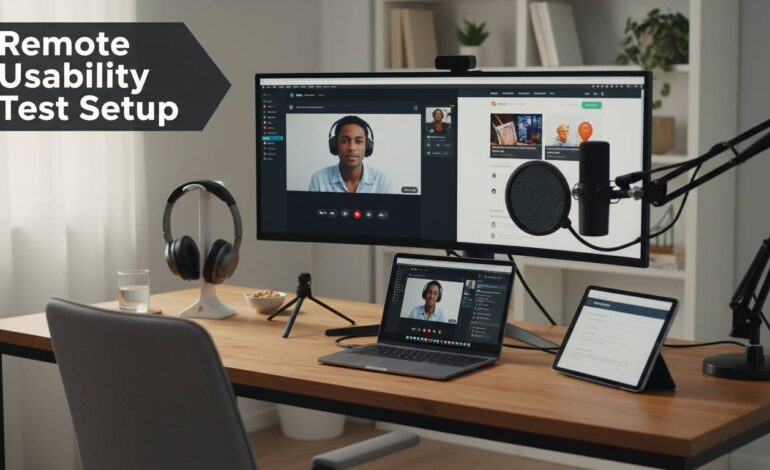
This guide covers preparing your remote usability testing setup from the hardware on your desk to the software connecting you to participants across time zones. I’ll share equipment recommendations at three price points because not every team has a professional studio budget. I’ll also point out the mistakes I see most frequently—and explain why that advice about always using external microphones might not apply to your specific situation.
Your equipment choices directly impact the quality of data you collect. Poor audio makes it difficult to capture participant verbalizations. Blurry video obscures non-verbal cues. An unstable connection derails the entire session.
Computer and Display Setup
The computer you use doesn’t need to be the latest model, but it must meet minimum specifications for smooth video conferencing and screen recording simultaneously. As of early 2025, a system with 16GB of RAM and a modern quad-core processor (Intel i5 equivalent or better, or Apple M1 equivalent) handles these workloads without stuttering. If you’re running a browser-based testing platform, multiple browser tabs, and local recording software simultaneously, 8GB will feel constraining.
A second monitor transforms your workflow. When participants share their screens, you need somewhere to display their content while keeping your note-taking interface, your session script, and your timing cues visible. I use a 27-inch external monitor beside my laptop screen, and I wouldn’t conduct sessions without it. The alternative—constantly switching windows—breaks your focus and makes you miss participant behavior.
For the display you’ll be visible on, position your camera at eye level. This means propping your laptop on a stack of books if necessary, or investing in a laptop stand. Looking down at your camera creates an unflattering angle that feels dismissive to participants. Looking up can seem arrogant. Eye level is the goal.
Audio Equipment: The Most Critical Component
Here’s where I’ll offer a contrary view: you probably don’t need an external microphone for most remote usability tests. The built-in microphones on modern MacBooks and high-end Windows laptops (ThinkPad X1 Carbon, Dell XPS, Microsoft Surface) capture sufficiently clear audio for usability research. What you actually need is a quiet room.
I’ve conducted sessions with participants using $50 headset microphones and sessions with participants in noisy coffee shops, and the latter produced nearly unusable recordings despite the “better” equipment. Meanwhile, participants using nothing but their laptop microphone in a quiet home office produced clean, analyzable audio.
That said, if you’re testing in a less controlled environment or want to ensure professional-quality recordings, a USB condenser microphone like the Audio-Technica AT2020 or a headset microphone like the Logitech H340 provides meaningful improvement. Avoid Bluetooth headphones for the recording side—they can introduce latency and connection issues. Wired connections are more reliable.
The microphone position matters more than the microphone quality. Place it 6-12 inches from your mouth, slightly off-axis (not directly in front, which captures plosives). If you’re using a laptop microphone, close your laptop’s lid if you’re using an external display, and position yourself 2-3 feet from the built-in mic.
Video Camera Options
Built-in laptop cameras suffice for most sessions, but they have limitations. The field of view is narrow, the low-light performance is often poor, and the angle is usually unflattering. If you’ll be on camera frequently, an external webcam makes a meaningful difference.
The Logitech C920 has been the standard recommendation for years—it’s reliable, affordable (around $70), and produces significantly better image quality than built-in options. The Razer Kiyo adds built-in ring lighting, which helps if your workspace has inconsistent lighting. For professional-grade video, the Sony Alpha ZV-E10 or a similar mirrorless camera with a clean HDMI output, paired with a capture card, produces broadcast-quality video—but this is overkill for most usability testing scenarios.
Lighting matters more than camera quality. Position yourself facing a window when possible, or invest in a basic desk lamp with a daylight-balanced bulb (6500K) positioned in front of you, slightly above eye level. Backlighting (a window behind you) makes you appear as a dark silhouette.
Best Software Tools for Remote Usability Testing
Software selection depends on your research goals. Are you conducting moderated sessions where you guide participants through tasks and ask follow-up questions? Or are you running unmoderated tests where participants complete tasks independently while their screen and voice are recorded?
Moderated Testing Platforms
If you’re conducting moderated sessions—speaking directly with participants in real-time—most video conferencing platforms handle the job adequately. Zoom remains the industry standard for remote usability testing due to its reliable screen sharing, cloud recording with automatic transcription, and the ability to draw on participants’ screens during sessions. The free tier limits sessions to 40 minutes, which is rarely sufficient for a proper usability test, so plan to pay for a Pro account ($15/month) or use your organization’s license.
Microsoft Teams offers similar functionality with the advantage if you’re already embedded in a Microsoft 365 environment. Its recording and transcription features have improved significantly since 2023, making it a viable alternative. Google Meet works for quick sessions but lacks the annotation tools that make screen sharing useful for usability research.
Specialized platforms add research-specific features. UserTesting and Maze offer structured templates, task completion metrics, and analysis tools, but they operate on subscription models that can exceed $300/month for full features. For teams conducting occasional usability tests, these platforms may not justify the cost.
UserInterviews.com (now part of Respondent) and Playbook UX connect researchers with participant pools and provide integrated session recording. These services handle participant recruitment—a significant time saver—but add a per-session cost plus the platform subscription.
Unmoderated Testing Tools
Unmoderated tests scale differently. Participants complete tasks on their own schedule, recording their screen and verbal thoughts. This format works well for quantitative studies with large sample sizes, but it sacrifices the ability to probe deeper when participants do something unexpected.
Lookback offers a hybrid approach—unmoderated recordings that you can watch in real-time, with the ability to jump into live sessions if you want to ask follow-up questions. Their pricing starts around $99/month, making it accessible for smaller teams.
Userlytics and UsabilityHub offer self-service unmoderated testing platforms where you upload your prototype or website, define tasks, and receive recorded sessions from their participant panels. Costs vary based on the number of sessions and participant demographics, but expect to pay $30-100 per completed session for quality participants.
Recording and Note-Taking Tools
For local recording, OBS Studio is a powerful free option that captures system audio, microphone input, and screen content with considerable customization. It requires some setup time, but once configured, it produces reliable recordings. The trade-off is that you must manually manage and store recordings—cloud platforms handle this automatically.
For note-taking during sessions, I recommend a dedicated tool rather than trying to type in the same window where you’re running the video call. Dovetail, a UX research platform, integrates directly with Zoom recordings and lets you tag moments for later analysis. For simpler needs, a plain text editor or Notion works fine—avoid rich text editors that slow you down with formatting options.
Setting Up Your Testing Environment
The physical environment where you conduct sessions influences participant comfort and data quality more than most researchers realize. A cluttered, distracting background makes participants self-conscious. Poor lighting makes you appear disengaged. Ambient noise corrupts audio recordings.
Lighting Your Space
Natural light is your best option, but control it carefully. A window directly in front of you creates backlighting that renders you as a dark shape. A window to your side creates uneven lighting with harsh shadows on one side of your face. The ideal setup: position your desk perpendicular to a window, so you have natural light illuminating your face without casting shadows.
If natural light is unavailable or unreliable, a ring light or panel light positioned in front of you at roughly 45 degrees above eye level produces even, flattering illumination. Avoid overhead fluorescent lighting when possible—it creates harsh shadows under your eyes and eyebrows that make you appear tired or unapproachable.
For participant-side lighting, you can’t control their environment, but you can advise them. Send pre-session instructions suggesting they position themselves near a window or light source and avoid sitting with their back to a bright window.
Managing Background and Visual Distractions
Your visible background communicates professionalism. A clean, neutral space suggests competence. A chaotic bookshelf, unmade bed, or visible clutter distracts participants and may make them less comfortable sharing honest feedback in what feels like an informal setting.
If you can’t stage your physical space, use a virtual background—but test it thoroughly first. Zoom’s background blur or standard virtual backgrounds work reasonably well, but they can glitch when you move, creating visual distractions. Poorly rendered virtual backgrounds sometimes cut off parts of your body. For important sessions, a physical backdrop or a clean, intentionally staged room is preferable.
Sound Management
Acoustic treatment matters more than most researchers acknowledge. Hard surfaces—bare walls, glass windows, wooden floors—reflect sound and create echo. Soft surfaces absorb sound. If your testing space sounds reverberant, your recordings will be difficult to analyze, and participants may speak more quietly to compensate for the uncomfortable acoustics.
The quickest fix: add soft furnishings. A bookshelf filled with books (irregular surfaces that break up sound waves), a blanket hung on the wall, or acoustic foam panels all help. For occasional testing, even recording in a closet full of clothes provides surprisingly good acoustics.
Minimize environmental noise. Close windows, turn off HVAC systems if possible, silence notifications on your phone and computer, and notify colleagues that you’re in a testing session. Background music is generally a bad idea—it can interfere with transcription accuracy and may make participants feel awkward.
Preparing Your Participants
The participant experience begins before they join the session. Clear, thorough pre-session communication reduces no-shows, resolves technical issues in advance, and helps participants feel prepared to provide useful feedback.
Pre-Session Communication
Send participants a confirmation email immediately after scheduling, followed by a reminder 24 hours before the session. Include the video call link, the estimated duration, and any software they need to install beforehand. Specify the timezone explicitly—it’s easy for participants to assume their local timezone when you’ve scheduled in yours.
For remote usability tests, ask participants to complete a technical check before the session. This doesn’t need to be complicated: a simple form where they verify they have a working microphone, a stable internet connection, and the video conferencing software installed. Several platforms, including Zoom, offer built-in audio/video testing that participants can complete independently.
Compensation details should be clear from the outset. Industry standard rates for remote usability sessions range from $50-150 per hour, depending on participant recruitment difficulty and the complexity of the tasks. Platforms like UserTesting and Maze handle compensation automatically. If you’re recruiting independently, have payment ready—PayPal, Amazon gift cards, or Venmo work well for quick disbursement after sessions.
Setting Expectations
Tell participants what to expect. Explain that you’ll be recording the session (and obtain explicit consent at the session start), that you value their honest opinions even if their feedback is negative, and that they’re helping improve a product, not being tested themselves. This framing reduces participant anxiety and produces more honest feedback.
Provide context about the session structure. Will you be asking them to think aloud? Will there be specific tasks, or will you be conducting a broader interview? Knowing this in advance helps participants prepare their thoughts and reduces awkward silence during the session.
Testing Your Setup Before the Session
This is the step most frequently skipped, and it’s the one I see cause the most problems. Tech rehearsal isn’t optional—it’s the difference between a professional session and an embarrassing scramble.
The Technical Checklist
Run through this checklist at least 30 minutes before each session:
- Internet connection: Test your speed at speedtest.net. Aim for at least 10 Mbps upload and download. If you’re on WiFi, move closer to the router or switch to a wired Ethernet connection.
- Video call platform: Log into the meeting room early. Verify your video and microphone work. Check that screen sharing is functional. Test any virtual backgrounds you plan to use.
- Recording: Start a test recording, speak for 30 seconds, stop the recording, and play it back. Verify audio levels are appropriate and video is clear. This catches issues with local recording software before they ruin real sessions.
- Second monitor: Ensure your extended display is configured correctly. Test that you can share the correct screen when needed.
- Backup plan: Have a phone number for your participant. If the video call fails entirely, you can switch to a phone call or reschedule. Know the platform’s phone dial-in option as a backup.
- Notifications: Disable all notifications on your computer. Nothing kills a serious research session faster than a Slack message popping up on screen during a participant’s response.
The Dry Run
If you’re new to remote usability testing or using a new platform, conduct a practice session with a colleague. This tests the complete flow: joining a call, sharing screens, recording, switching between windows, and ending the session. It also helps you identify where your attention naturally goes and whether you need to adjust your note-taking setup.
Common Mistakes to Avoid
After hundreds of sessions, I’ve compiled a list of pitfalls that consistently undermine remote usability testing. Some of these contradict conventional wisdom.
Skipping the Tech Rehearsal
I mentioned this already, but it bears repeating because it’s the most common mistake. The participants who no-show or whose audio doesn’t work are disproportionately likely to be those who didn’t run a tech check. Making tech verification part of your pre-session communication catches most issues before they become session-ending problems.
Over-Investing in Equipment
There’s a temptation to think that better equipment produces better research. It doesn’t. A $3,000 setup in the hands of a researcher who hasn’t practiced moderating skills will produce worse data than a $500 setup operated by someone who’s done their methodological homework. Invest in training and practice before you invest in premium hardware.
The exception: if you’re conducting sessions frequently enough that equipment reliability is a bottleneck, then equipment quality becomes a time savings investment. But most teams aren’t conducting daily sessions.
Neglecting Participant Comfort
Participants who are uncomfortable won’t give you honest feedback. They’re too focused on the awkwardness of the situation. Make small talk at the session start. Thank them genuinely for their time. If they seem nervous, acknowledge it directly: “This is just a conversation about how you use products—there’s no right or wrong answer, and I’m here to learn from you.”
Ignoring Asynchronous Communication
In moderated sessions, it’s easy to forget that your chat window exists. But chat is valuable for participant-generated links, screenshots, or notes they want to share without interrupting their verbal flow. Keep chat visible during sessions, and check it when participants mention they’ve sent something.
Failing to Debrief
After each session, take 3-5 minutes to write down your key observations while they’re fresh. Record any quotes that stood out, moments of confusion or delight, and any technical issues that occurred. This habit compounds over time—you’ll start seeing patterns across sessions before you’ve even begun formal analysis.
Conclusion
Preparing for a remote usability test comes down to three things: respect for your participants’ time, respect for your team’s resources, and respect for the data you’re trying to collect. The equipment, software, and environment all serve the research process. They’re not the point themselves.
Start with a quiet, well-lit space and reliable video conferencing. Test everything before participants arrive. Send clear instructions and compensate fairly. Practice your moderating skills until the technology becomes invisible and you can focus entirely on understanding your users.
The best remote usability tests don’t feel like technical demonstrations—they feel like genuine conversations where something useful gets discovered. That happens when preparation becomes second nature, when your setup fades into the background, and when you and your participant can focus entirely on the task at hand. Build that foundation, and you’ll immediately collect better, more useful data from every session.